
How to Create a Wedding Photo QR Code
Set up a wedding photo gallery, get its QR code, and test the guest upload link before printing signs or table cards.

Founder of Wedding Photos QR
Published
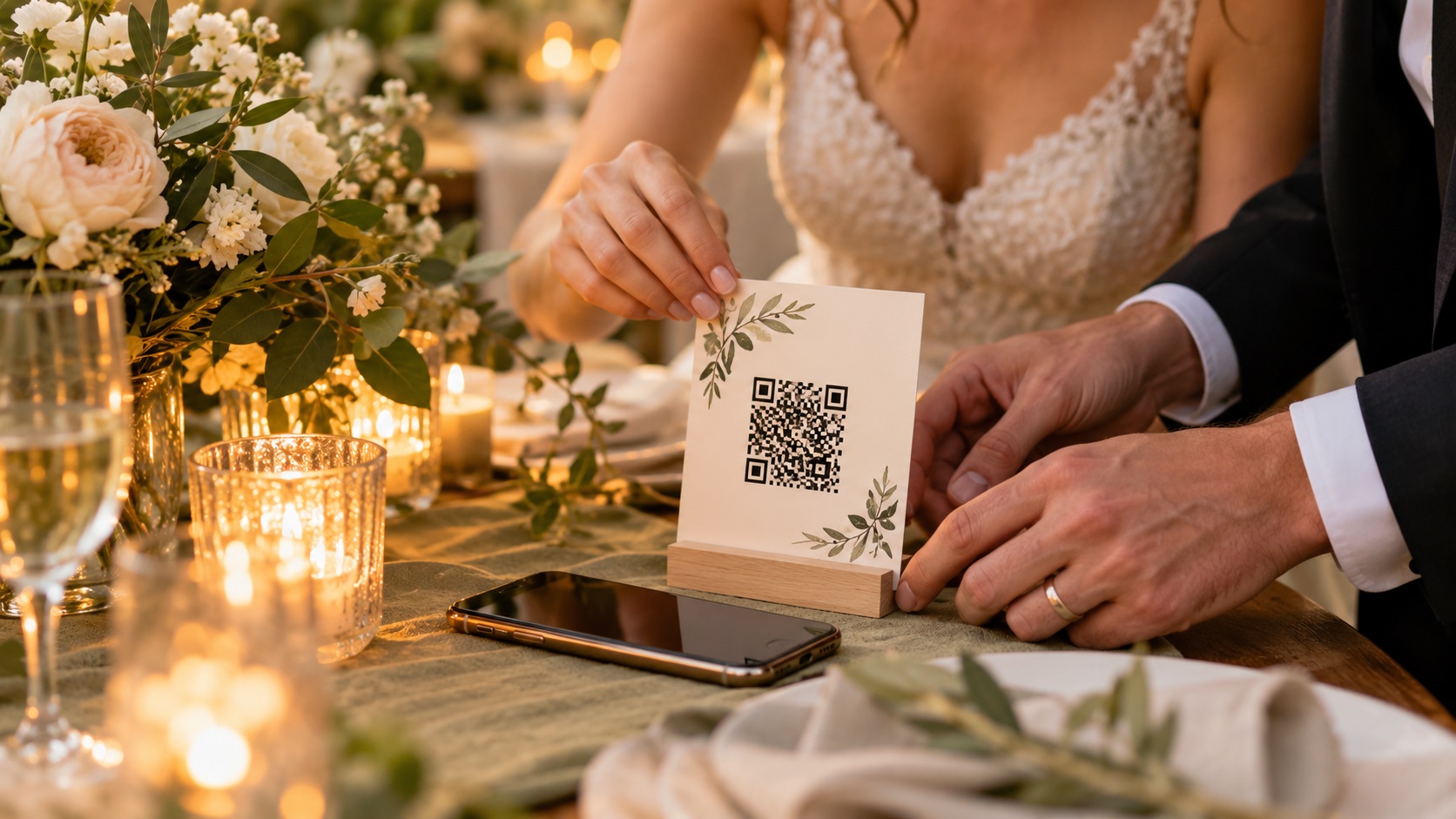
A wedding photo QR code is a scannable link to the gallery where guests can share pictures from your day. Set up the gallery first, download its QR code or create one from its guest upload link, then scan it on a phone before printing it.
The destination matters more than the design. A well-decorated code is no help if it opens the wrong page or guests cannot upload once they arrive there.
How to create a wedding photo QR code
- Choose the gallery guests will use. Pick a shared album or an event gallery that accepts guest uploads. Check whether guests need an account or app, whether videos are accepted, and who can see the uploads.
- Set up the gallery. Complete the details the service asks for, then find the guest invite or upload link. This is the web address the QR code needs to open.
- Get a QR code for that link. If your gallery provides a QR code, download it from the gallery dashboard. Otherwise, use a QR code tool that lets you enter the upload link. Keep the destination link somewhere you can retrieve it later.
- Test it on a phone. Scan the code with a phone camera and check that it opens the right gallery. Follow the guest steps and, if possible, upload a test photo. Confirm that the photo appears where you expect.
- Add it to your wedding materials. Place the code on a welcome sign, table card, or other spot where guests can pause and scan. Print a short instruction beside it so people know what it opens.
- Scan the printed version. Test the actual sign or card at the size and distance guests will use. Check the link again after any design or printing changes.
Create a QR code with Wedding Photos QR
Wedding Photos QR creates a private wedding gallery with an invite link and QR code. After setting up your wedding gallery, open the dashboard’s Invite to wedding section. You can copy the invite link or download the QR code image there.
Scan the downloaded code with a phone that is not signed in to your account. The guest page opens in a browser, and guests can upload photos and videos without installing an app or creating an account. Try the upload flow before you share the code with your guests.
See how Wedding Photos QR works, read the frequently asked questions, and check current pricing before choosing a plan.
Make the QR code easy to scan
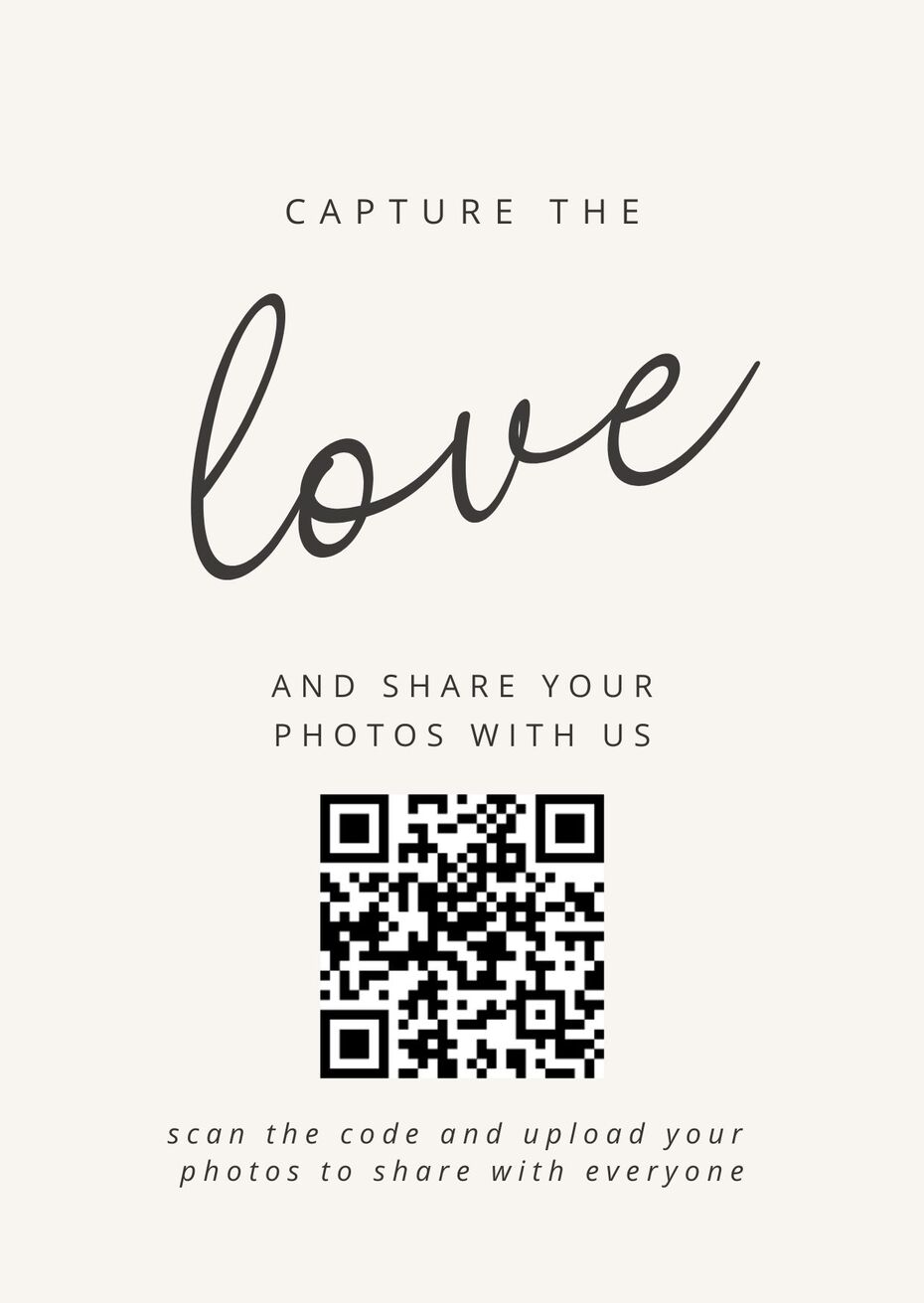
Give the code enough clear space around it. Avoid placing text, illustrations, or a fold across the pattern. If the design tool lets you change colors, use strong contrast between the code and its background and keep the pattern simple.
Put a short instruction next to the code, such as:
Scan to share your favorite wedding photos with us.
Use wording that matches the gallery. If it accepts videos as well, you could invite guests to share photos and videos. A clickable link in your wedding message can also help guests find the gallery when they are away from the printed sign.
What to check before printing
- Scan the code and confirm that it opens the guest upload page.
- Try the upload steps on a phone as a guest would.
- Check whether the gallery needs an account or app.
- Make sure the printed code is large enough to scan from where guests will stand or sit.
- Scan the final printed sign or card, not only the design on your screen.
- Keep a copy of the invite link so you can share it in messages after the wedding.
Common wedding QR code problems
The code opens the wrong page. Check that it contains the guest invite or upload link, not the dashboard address or your general account page. Generate a fresh code if the link changed.
A phone camera cannot scan it. Increase the printed size, leave more blank space around the code, or use darker marks against a lighter background. Then try again from the distance guests will scan it.
Guests reach the gallery but cannot upload. Follow the guest flow yourself and check the gallery’s upload requirements and access settings. Make sure the link you printed is the one guests should use.
Do wedding guests need an app to scan a QR code?
Scanning a QR code usually opens a link in the phone’s browser. Whether guests need an app or account to upload depends on the gallery service, so test the guest link before printing your code. Wedding Photos QR lets guests upload through their phone browser without an app or account.
Can I put a wedding photo QR code on invitations?
Yes. You can add the code to invitations, programs, welcome signs, or table cards. Check the final printed version before distributing it, and include a clickable link in digital invitations for guests who cannot scan the code from their screen.